Bring your Granola notes home to Muesli
Bring your Granola meeting history to your Mac. Muesli 0.8.6 will import notes and transcripts from the official export, ready to search, edit, and keep.
Your customer calls, interviews, and team meetings become more useful when you can return to them months later. A decision from last quarter. The exact words a customer used. A commitment you need to follow through on.
We believe you should be able to keep that history on your own machine, search it, and take it wherever you work next. That is why we are adding Granola imports in Muesli 0.8.6.
Export your history from Granola, import it into Muesli, and keep your notes and transcripts in a free, open-source app on your Mac. Your imported archive will remain available without a Muesli subscription or a rolling history cutoff.
Keep your meeting history with you
Michael recently asked for help leaving Granola:
I'm looking to migrate from Granola and export away all of my data
Michael (@michael_chomsky) · October 22, 2026
Earlier, Guido Appenzeller criticised the loss of local access and asked what other people were switching to:
Any recommendations for good alternatives? What are you switching to?
Guido Appenzeller (@appenz) · March 16, 2026
These posts describe their experiences at the time. Granola now offers a public API on paid plans and an official export available on Basic. That export is the route we use to bring your history into Muesli.
We built this import for people making that move. You have already spent the time in those meetings. Switching apps should let you carry that work forward.
The difficulty of relying on someone else's storage has also shown up in community tools. The maintainer of Granary, a Granola-to-Markdown exporter, archived the project after encrypted cache changes broke its exports. Muesli's importer uses Granola's supported export, so you can move your history without maintaining a workaround.
Once imported, your notes live in Muesli's local meeting library. You can search old conversations, edit notes, and export notes or transcripts as Markdown or PDF. Keep a copy in your project folder, add it to your own knowledge base, or share a document with a colleague.
You should have that same freedom to leave Muesli. Exporting your work is part of the app.
Make Muesli your next meeting notebook
Muesli brings dictation and meeting transcription to Apple Silicon Macs, with speech-to-text running on your device. You can continue building your meeting history alongside the notes you bring over from Granola.
- Keep a local archive. Your imported meetings are stored on your Mac. Optional iCloud sync follows your existing Muesli settings.
- Find older conversations. Global meeting search reaches imported records beyond the latest 200 shown in the meeting browser.
- Keep the original content. Import preserves the summaries, manual notes, and transcripts present in your export, without rewriting them.
- Use ordinary files outside the app. Export notes and transcripts as Markdown or PDF whenever you need them.
Muesli is free and open source. For new meetings, optional AI summaries use the backend you configure, which may involve a cloud provider and its own charges. Importing existing summaries does not call an AI service.
Export from Granola in three steps
You can prepare your export now and import it when Muesli 0.8.6 is available.
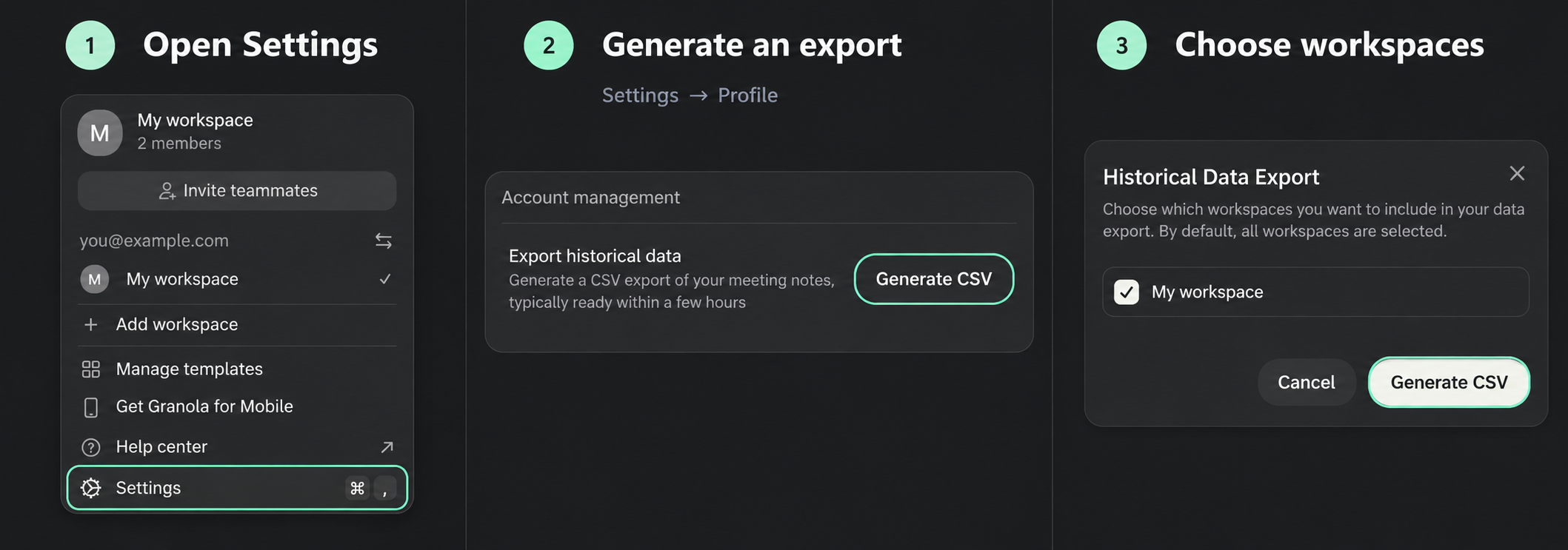
- Open your workspace menu in Granola and choose Settings.
- Go to Profile, find Export historical data, and click Generate CSV.
- Choose the workspaces to include and click Generate CSV again.
Granola will email a download link. Use the same account to download your export within 24 hours, before the link expires. Keep the ZIP or CSV files for the next step.
You can export on Granola's free plan. Its official export includes eligible notes older than the 30-day in-app history window. Export is enabled on Basic and Business; Enterprise administrators control access. Granola's export instructions.
Bring the export into Muesli
In Muesli 0.8.6, open Meetings → Import → Granola. Select your ZIP or CSV files, check the preview, and import.
Your meetings will appear in a Granola folder, with their titles and creation dates. Generated summaries keep their exported Markdown, manual notes remain separate, and transcripts retain their text and line breaks. Previously imported document IDs are skipped, preserving your local edits when you select the same records again.
This is a one-time file transfer. Once the content is imported, reading it in Muesli does not require a connection to your Granola account. Import details.
Before you leave your old archive
Check a few important meetings after importing, and keep the original export as a backup.
Granola's export covers notes you own that have a summary. Deleted notes and notes without summaries are excluded, so your exported count may be lower than your in-app count. Export scope.
Muesli can preserve only what the file contains. The October 2026 export we tested did not include audio, duration, structured participant lists, or speaker timestamps. Creation dates are labelled “Created”; missing content stays empty.
Bring your next meeting to Muesli
You can start using Muesli for new meetings today. When 0.8.6 arrives, bring your Granola history over and keep it alongside everything you record next.
Your meeting notes should stay useful for as long as you need them. Keep them on your Mac, make your own backups, and choose what you do with them.